

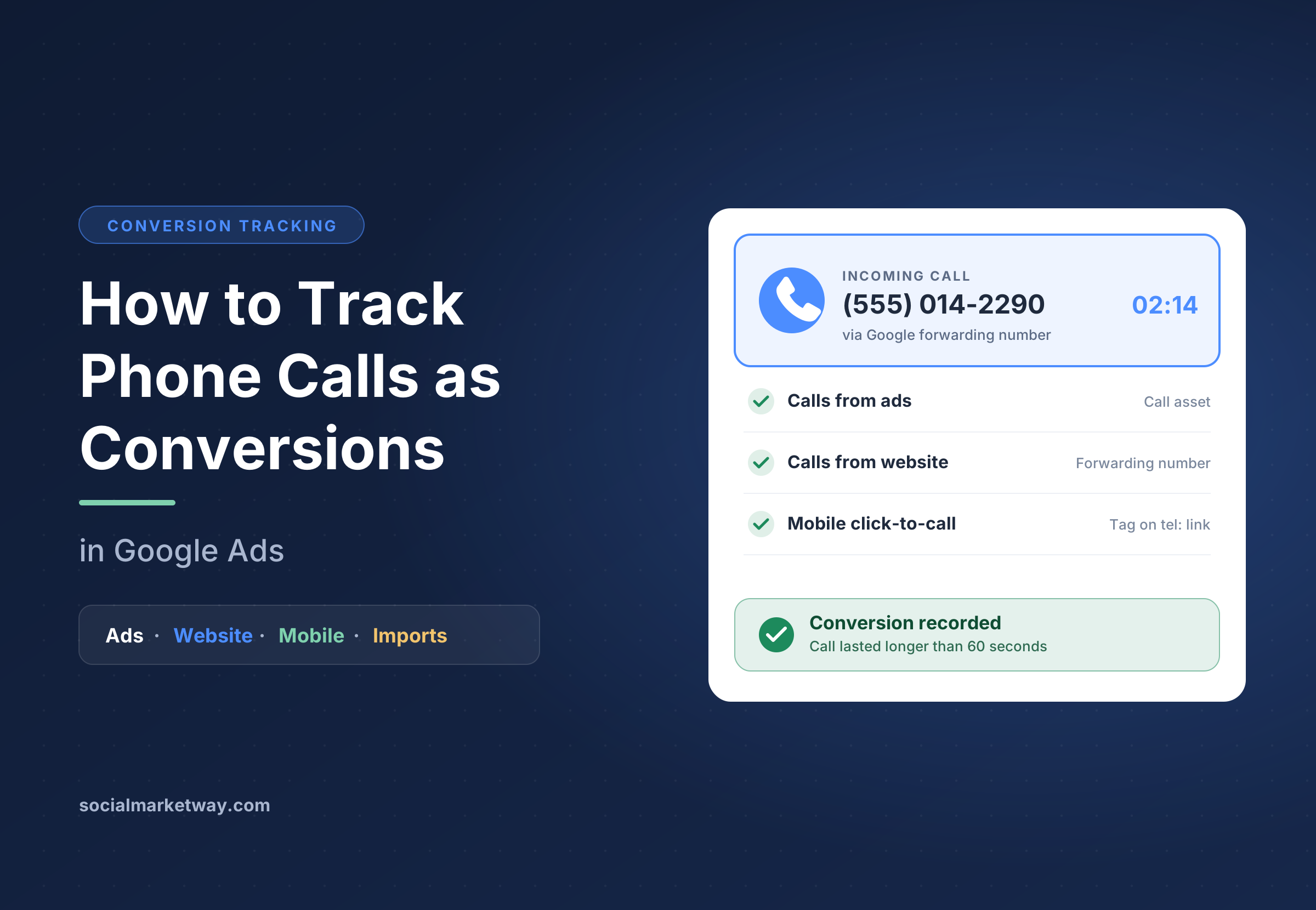
How to Track Phone Calls as Conversions in Google Ads

For many businesses, the most valuable thing a Google Ads click can produce is not a form submission or an online purchase. It is a phone call. Plumbers, law firms, dental practices, home service companies, clinics, and B2B sales teams often win most of their customers over the phone.
Yet a surprising number of advertisers never track those calls inside Google Ads. Their reports show clicks and maybe a few form fills, while the calls that actually pay the bills go unrecorded. The result is a distorted picture: campaigns that drive the most revenue can look like failures, and Google’s bidding algorithms optimize toward the wrong goals.
This guide walks you through every way to track phone calls as conversions in Google Ads. You will learn the main tracking methods, how to set each one up, which settings to choose, how to test that everything works, and how to use call data to improve results.
If you would prefer experts to set up and manage call tracking for you, our Google Ads management services include full conversion tracking setup and auditing as standard.
Why Tracking Phone Calls Matters
Phone calls are often the highest-intent action a prospect can take. Someone who picks up the phone usually has an urgent need, a specific question, or is ready to book. Call leads also tend to convert into paying customers at higher rates than form leads in many service industries.
If those calls are invisible to Google Ads, three problems follow.
You cannot measure true return on ad spend. Without call data, your reported cost per conversion is inflated and your return on ad spend looks lower than it really is. You might cut a campaign that is quietly generating your best customers.
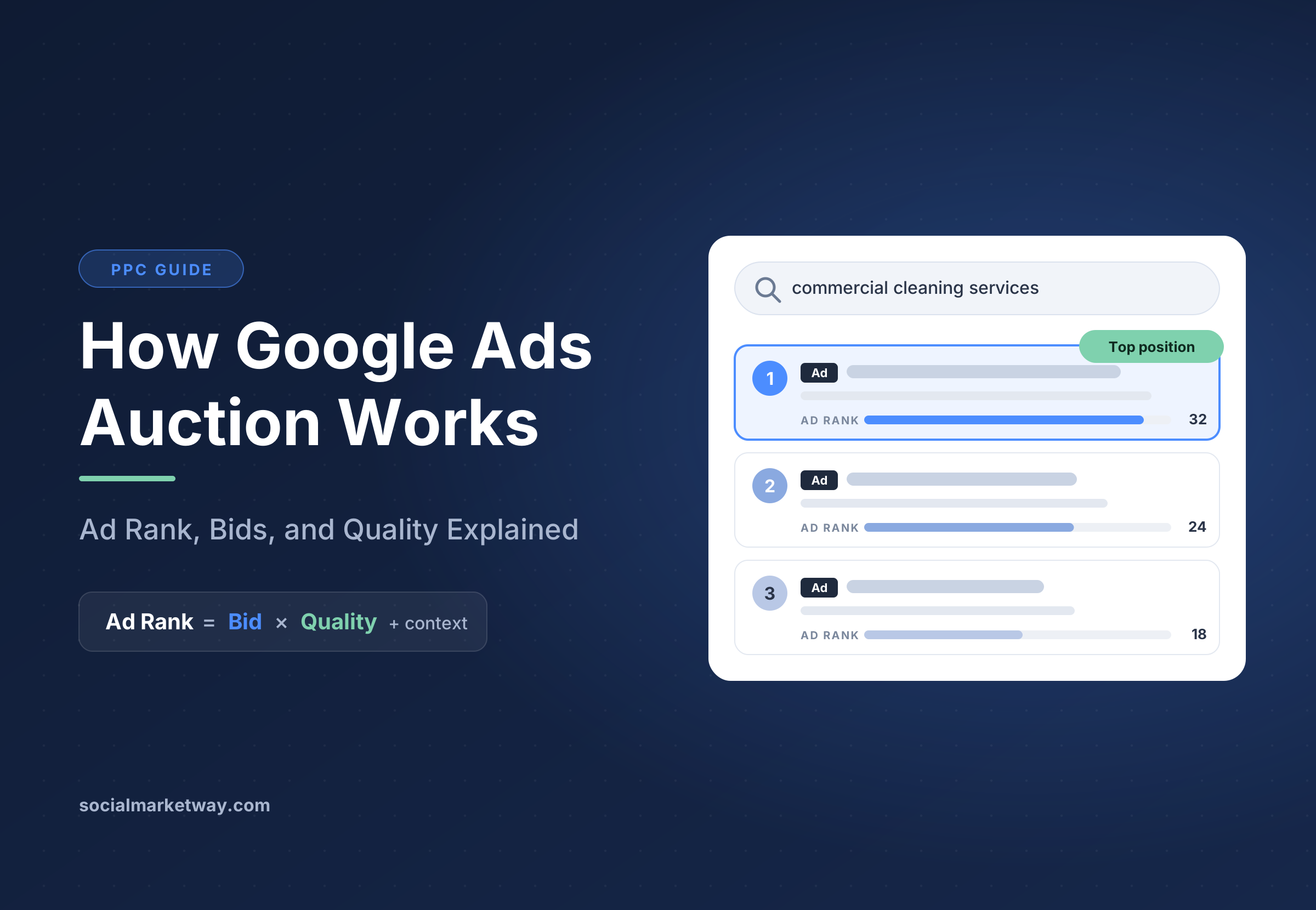
Smart Bidding optimizes toward the wrong goal. Automated strategies such as Maximize Conversions and Target CPA learn from the conversions you track. If they only see form fills, they will chase form fills, even if calls are worth far more to your business. That also affects how competitively you bid in each auction. Our guide on how the Google Ads auction works explains why bids and conversion data shape every placement.
You cannot tell which keywords drive calls. Call tracking connects calls to the campaigns, ad groups, and keywords behind them. That insight is essential for deciding where to spend more, which searches to exclude, and even which keyword match types to use. If you are weighing that last decision, see our breakdown of broad match vs. phrase match vs. exact match, where accurate conversion tracking is a key factor.
In short, if phones ring because of your ads, tracking those calls is not optional. It is the foundation of every good decision you make in the account.
The Four Ways to Track Calls in Google Ads
People reach you by phone through several different routes after seeing your ad. Each route needs its own tracking method, and most businesses benefit from using more than one.
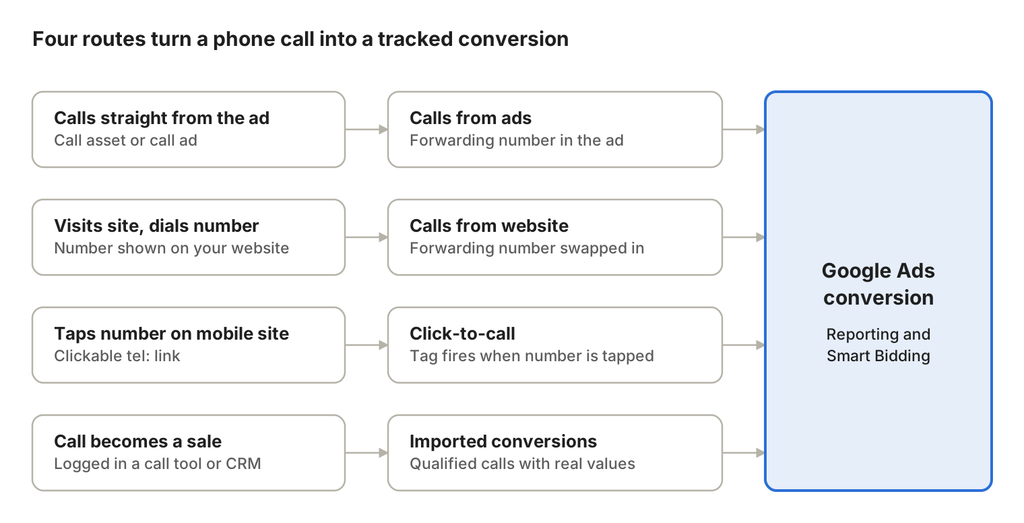
| Method | What it tracks | Measures call length? | Best for |
|---|---|---|---|
| Calls from ads | Calls made directly from a call asset or call ad | Yes | Mobile searchers who call without visiting your site |
| Calls from your website | Calls to a forwarding number shown on your site after an ad click | Yes | Visitors who research first, then call |
| Mobile click-to-call | Taps on your phone number on your mobile site | No | Simple setup, or countries without forwarding numbers |
| Third-party tracking and imports | Calls tracked by another platform or marked as qualified in your CRM | Yes, plus call quality | Businesses that need to know which calls became customers |
The sections below explain how to set up each method step by step.
Before You Start: What You Need
A few things should be in place before you create any call conversion actions:
- Admin or standard access to your Google Ads account. You need permission to create conversion actions and edit ads.
- Access to your website code or Google Tag Manager. Website call tracking requires adding the Google tag and a small phone snippet, either directly or through Tag Manager.
- A clear definition of a qualified call. Decide how long a call must last to count as a real lead. Many businesses use 60 seconds, which is Google’s default, but a law firm might choose longer and a takeout restaurant shorter.
- Call reporting turned on. For calls from ads, call reporting must be enabled in your account settings so Google can use forwarding numbers and record call details.
- A check on availability. Google forwarding numbers, which power some call tracking methods, are available in many countries but not all. Confirm availability for your country in Google Ads help before planning around them.
- A rough value for a phone lead. Even an estimate helps. If one in four qualified calls becomes a $400 customer, a call is worth about $100 to you.
With those basics covered, you can choose the tracking methods that match how customers reach you.
Method 1: Track Calls From Your Ads
This method tracks people who call you directly from your ad, without visiting your website. These calls come from call assets (a phone number or call button added to your search ads) and call ads (ads designed to drive calls, mainly on mobile devices).
When call reporting is on, Google displays a Google forwarding number in your ad where available. The call is routed through that number to your real business line, which lets Google record details such as call start time, duration, caller area code, and whether the call was connected.
How to set it up
- Turn on call reporting. In your account settings, find the call reporting option and make sure it is enabled.
- Add a call asset or create a call ad. Add your business phone number as a call asset at the account, campaign, or ad group level. Set an ad schedule for the asset so the number only shows when someone can answer.
- Create the conversion action. In Google Ads, go to the Goals section, open Conversions, and create a new conversion action. Choose Phone calls, then select Calls from ads using call assets or call ads.
- Set the call length. Enter the minimum duration a call must reach to count as a conversion, such as 60 seconds.
- Choose value, count, and window settings. Assign a value, select One conversion per click for lead generation, and set the conversion window. More on these choices below.
- Save and attach. Make sure the conversion action is included in your campaign’s conversion goals so it is reported and used for bidding.
Good to know
- Calls from ads are measured as “phone calls” in your reports in addition to conversions. A call counts as a conversion only if it meets your duration threshold.
- If someone calls your real number shown elsewhere, such as in your Business Profile, that call will not be captured by this method.
- Answer calls from ads promptly. Missed calls do not become customers, and a call asset that frequently goes unanswered wastes budget.
Method 2: Track Calls to a Number on Your Website
Many people click an ad, browse your website, and then call. Those calls are missed by Method 1, because the caller dialed the number on your site rather than in your ad. Website call tracking solves this.
It works through dynamic number insertion. When a visitor arrives from one of your ads, a small piece of code on your site replaces your regular phone number with a Google forwarding number. When they call that number, Google forwards the call to your real line and connects it to the ad click that brought them there.
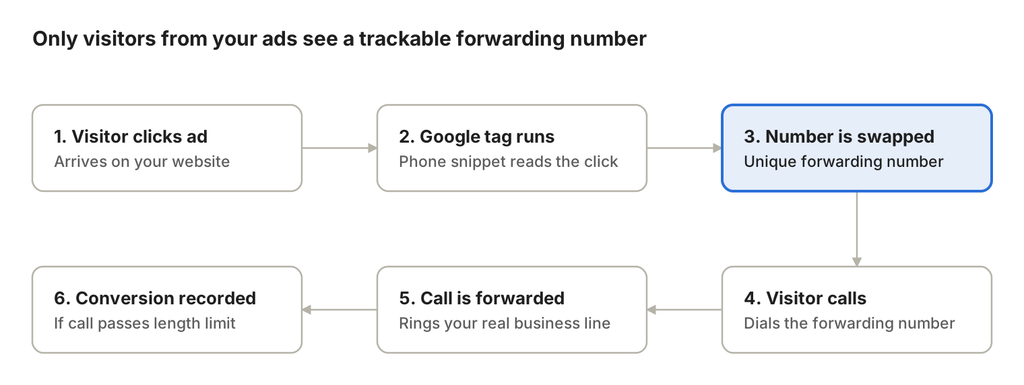
Visitors who arrive any other way, such as organic search or a bookmark, still see your normal number. This keeps your tracking clean and your number consistent for everyone else.
How to set it up
- Create the conversion action. In Google Ads, go to Goals, open Conversions, and create a new conversion action. Choose Phone calls, then select Calls to a phone number on your website.
- Enter your business number and call length. Add the phone number exactly as it appears on your site, and set your minimum call duration.
- Configure value and count. Assign a value and choose One conversion per click for most lead generation businesses.
- Install the Google tag site-wide. If your website does not already have the Google tag for your Ads account, add it to every page.
- Add the phone snippet. Google provides a snippet that tells the tag which number to replace. Add it to the pages where your number appears, or use Google Tag Manager’s Google Ads call conversion tag, which handles the swap for you.
- Make sure the number is text. The number must appear as text in your page code, not inside an image, so the snippet can find and replace it.
Good to know
- This method requires Google forwarding numbers, so check availability in your country.
- Number replacement only happens for visitors who clicked an ad, so you will not see the swapped number if you simply visit your own site. Testing tips are covered below.
- Because the call is connected to a specific click, you can see which campaign, ad group, and keyword produced it.
Method 3: Track Clicks on Your Phone Number on Mobile
On a phone, visitors often tap a clickable number rather than dialing it. You can track those taps as conversions, even where forwarding numbers are not available.
This method records the click, not the call itself. It cannot tell you whether the call connected or how long it lasted, so it is less precise than the website call method above. It is, however, quick to set up and works in any country.
How to set it up
- Make the number clickable. Your phone number should be a tel: link, so tapping it opens the phone’s dialer.
- Create the conversion action. In Google Ads, create a new conversion action, choose Phone calls, then select Clicks on your number on your mobile website.
- Install the event snippet. Add the Google tag to every page, then add the event snippet so it fires when someone taps the tel: link. Many advertisers do this in Google Tag Manager with a Google Ads conversion tag triggered by clicks on links that begin with tel:.
- Set value and count. As with other lead conversions, counting One per click is usually best.
When to use it
Use click-to-call tracking when forwarding numbers are unavailable in your country, as a quick first step while you set up fuller tracking, or alongside website call tracking as a supporting signal. If you track both clicks and actual calls, mark only one of them as a primary conversion to avoid counting the same lead twice.
Method 4: Third-Party Call Tracking and Imported Calls
Google’s built-in tools measure whether a call happened and how long it lasted. They cannot tell you whether the caller became a customer. For that, many businesses use a dedicated call tracking platform alongside Google Ads.
Third-party call tracking tools typically offer:
- Call recording and transcription, so you can hear what callers actually wanted.
- Lead scoring and tagging, so your team can mark calls as qualified, booked, or junk.
- Tracking for every channel, including organic search, social media, and offline ads, not only Google Ads.
- CRM integrations, so a call can be connected to the revenue it eventually produced.
Sending call data back to Google Ads
The real power comes from feeding that richer data back into Google Ads. Most major call tracking platforms integrate directly with Google Ads and can send calls as conversions automatically, often using the click ID (GCLID) captured when the visitor arrived from your ad.
You can also upload calls yourself. Google Ads supports offline conversion imports, including call conversion imports, which let you send conversions for calls that later turned into qualified leads or sales. You can include a conversion value for each, such as the actual revenue from the job.
This approach lets you optimize toward the calls that matter most. Instead of telling Smart Bidding that every 60-second call is a win, you can tell it which calls became paying customers and how much they were worth.
When to use it
Consider third-party tracking or imports when phone leads drive a large share of your revenue, when call quality varies widely, or when you have the volume to justify the extra cost. Smaller accounts can start with Google’s native tools and upgrade later.
Choosing the Right Conversion Settings
Each call conversion action comes with settings that change what gets counted and how Google uses it. These are the ones that matter most:
| Setting | What it controls | Recommended starting point |
|---|---|---|
| Call length | Minimum duration for a call to count | 60 seconds, then adjust based on what a real inquiry sounds like |
| Value | The worth assigned to each conversion | Average revenue per call: close rate x average sale value |
| Count | One or every conversion per ad click | One, because repeat calls are usually the same lead |
| Conversion window | How long after a click a call can be credited | 30 days for most services; longer for slow sales cycles |
| Attribution model | How credit is shared across ad clicks | Data-driven, Google’s default, where available |
| Primary or secondary | Whether the action is used for bidding | Primary for real leads; secondary for supporting signals |
Two of these deserve extra attention.
Call length. Too short and you count wrong numbers, sales calls, and hang-ups. Too long and you miss quick bookings. Listen to a sample of calls, or review call durations in your reports, to find the point where real inquiries begin.
Primary versus secondary. Primary conversions are reported in the main Conversions column and used by Smart Bidding. Secondary conversions are recorded for observation only. If you track both mobile clicks on your number and actual website calls, make the actual calls primary and the clicks secondary. That way a single lead is not counted twice, and bidding learns from the stronger signal.
Testing and Verifying Your Setup
Never assume call tracking works just because the setup screens say it is complete. Test each method before you rely on the data.
Check the conversion status. In the Conversions section of Google Ads, each action shows a status. A new action may show as unverified or inactive until it records activity. Statuses that point to tag problems need attention.
Test website number replacement. Google only swaps your number for visitors who arrive from an ad. To test, search for one of your keywords, click your ad, and confirm that a different number appears on your site. Clearing cookies between tests helps. Google Tag Assistant can confirm that the Google tag and phone snippet are firing.
Make a real test call. Call the forwarding number and stay on the line longer than your call length threshold. The call should reach your business line normally.
Check call reports. For calls from ads, review the call details report in Google Ads to see recorded calls with their duration and status. Website calls should appear as conversions after Google processes them, which can take some time.
Test click-to-call tags. In Tag Manager preview mode, tap or click the phone link and confirm the conversion tag fires once.
Watch the numbers for a few weeks. Compare calls recorded in Google Ads with your phone system logs or front desk records. A large gap usually signals a tracking problem, such as the snippet missing on some pages or a number hard-coded in an image.
Using Call Data to Optimize Your Campaigns
Once calls are tracked, you can make smarter decisions across your account.
- Find your best call-driving keywords. Review conversions by keyword and search term. Increase investment in terms that produce calls, and add negative keywords for searches that drive clicks but never ring the phone.
- Refine your match types. Keywords that produce valuable calls in exact or phrase match may be good candidates for a controlled broad match test, now that Smart Bidding has reliable call data to learn from.
- Schedule ads around your phones. Check when calls convert by hour and day. If no one answers after 6 p.m., limit call assets to business hours and consider lowering bids in the evening.
- Adjust for device. Most calls come from mobile. If calls are your main goal, review mobile performance closely and make sure your mobile landing pages make calling easy.
- Switch to conversion-based bidding. With calls tracked, strategies such as Maximize Conversions or Target CPA can finally optimize toward your real business outcomes.
- Use values to prioritize quality. If you import qualified calls with real revenue values, move to value-based bidding such as Target ROAS, so Google pursues the calls worth the most.
- Compare channels fairly. With calls included, you can see the true cost per lead from paid search. That helps when deciding how to split budget between paid and organic, a decision explored in our guide to SEO vs PPC.
This cycle of measuring, testing, and refining is at the heart of effective PPC management. Accurate call data turns guesswork into decisions you can defend.
Common Call Tracking Mistakes to Avoid
Counting every call, however short. A threshold that is too low fills your reports with wrong numbers and hang-ups, and teaches Smart Bidding to chase low-quality calls.
Double counting the same lead. Tracking mobile clicks, website calls, and imported calls as primary conversions at once can count one caller three times. Choose one primary action per lead type.
Hard-coding your phone number in images. Google cannot swap a number that is part of an image or a graphic. Keep phone numbers as text, or tracked calls will be missed.
Forgetting pages and templates. If the phone snippet only runs on your homepage, calls from other pages go untracked. Install the Google tag site-wide.
Showing call assets when nobody can answer. Unanswered calls cost money and lose leads. Schedule call assets to match your business hours.
Setting it and forgetting it. Website redesigns, new phone systems, and tag changes can quietly break tracking. Recheck your setup after any site change and review call data monthly.
Not assigning values. Without values, a two-minute price-shopping call counts the same as a large booked job. Even rough values help bidding prioritize better leads.
Conclusion: Make Every Call Count
If your phone rings because of Google Ads, those calls belong in your conversion data. Tracking calls from ads, calls from your website, and mobile clicks on your number gives you an accurate picture of what your campaigns really deliver. Adding call quality data through a call tracking platform or imports takes that picture further, showing which calls became customers.
With accurate call tracking in place, you can measure true return on ad spend, give Smart Bidding the right signals, and invest with confidence in the keywords and campaigns that drive real business. To see how better data improves every auction you enter, read our guide on how the Google Ads auction works. And once your conversions are reliable, revisit your keyword strategy with our guide to broad, phrase, and exact match.
Need help setting up call tracking or checking whether your current setup is accurate? The team at Social Market Way can audit your conversions and build tracking that captures every lead. Explore our Google Ads management services or learn more about our wider PPC services.